
Most carousels are inaccessible and they're often discoraged in the accessibility community, because they're often rubbish. Let's face it, we're always going be up against poorly built components, but the same can be true of any other component, it's just that carousels are more complex than nav menus, etc
But the above being said, carousels have a place when done correctly, if we were to bring up a property search website to look for a new home to rent or buy, we'd almost certainly encounter a carousel, as it's a convenient way of stacking a bunch of images into the same discrete component. They are related to the home, showing 20, 30 or more images on a single page, which may be overwhelming for some, especially if they just want to find the property details, before they waste time deciding where they're going to be put their furniture in a house they'll never live in, as there may be something in the particulars that makes it unsuitable for them.
So, I'm just going to build a few carousel some variations of a carousel. We'll start from a standard scrolling container of images, which will only be shown where JS isn't available. We will use the new native CSS carousel functions, which has very little support and we'll take a look at some of the pros and cons of that. Finally, we'll build something that is supported across all major browsers.
Initially my idea was to make this one guide, I would have also included the carousel pattern with pips or dots as controls, unfortunately, I got myself into a bit of a tangle with Safari and then an even bigger tangle with Firefox and this has taken a little longer than I expected, it also resulted in a good chunk of extra code and explanations. So this Part 1 guide will not include the version with pips/dots, we'll take our code over to a Part 2 guide and modify it in there, over the coming weeks.
As always, we'll just start from some base HTML, which will be a bunch of images and a heading, which we'll then style it a little, so it's available as something somewhat carousel-like, when other features are not available.
Once we have done that, we'll gradually increase more interactivity, for when it is supported.
I'm just going to use five images, for no other reason other than five kind of seems to be the minimum number of things that would warrant the legwork of making a carousel, but that's just my own personal opinion.
When I write the code the images will point to a folder in my project, but the full code on CodePen will differ, in that I have to link to those images and load them from there, because that's how CodePen works. I'll just add those images to a folder, here on MTA.
I'm not going to use any fancy image processing, so each image will just have a single asset, we won't be calling the most appropriate size or format for the viewport or browser, because we're here for accessibility, functionality and behaviour and we'd likley have some image-processing package handle all of that for us, in the real world.
First we'll get the non-carousel stuff out of the way, as the likelihood is I'll be using CSS on some of that, so for completeness, I'll include it:
We need a way to detect if JS is enabled, so let's do that now:
<!DOCTYPE html>
<html lang="en" class="no-js">
<head>
  <meta charset="UTF-8">
  <meta name="viewport" content="width=device-width, initial-scale=1.0">
  <link rel="stylesheet" href="https://cdnjs.cloudflare.com/ajax/libs/font-awesome/7.3.1/css/all.min.css" referrerpolicy="no-referrer" />
  <script>
    document.documentElement.classList.remove('no-js');
    document.documentElement.classList.add('has-js');
  </script>
  <title>Example accessible carousel</title>
</head>
<body>
  <!-- carousel stuff -->
</body>
There's only really two points of interest, here. The rest is just the absolute minimum <head> stuff, which we would of course add to:
- We have a
.no-jsclass on the<html>element, as this serves as the default classname we can use as a hook - We have a small
<script>in the<head>where we get the<html>element withdocument.documentElementand then access that element'sclassList, we thenremovethe.no-jsclass and thenadd.has-js
The above can only run when JS is avilable, so we have a convenient hook for our functionality and CSS. I also have a link to font-awesome on a CDN, because whilst I attempted to use alternative symbol icons, Firefox was being awakward.
What we will do now is is add as much of the base HTML as we can. Much of that won't be used when JS is unavailable, sure, we could add it with JS, but for simplicity's sake and reducing the size of our JS file, we'll take a few extra bytes of redundant HTML and ARIA, as long as it has zero effect on the non-JS version or we can hide it.
That does provide us with a slightly awkward base, in that if we don't have JS enabled, what options do we actually have to reduce the collection of images into something a little more manageable?
We do now have some of that functionality available in CSS, of all things. Scroll buttons that require zero JS. These are quite new, having only been available without flags for a year or so. As is always par for the course, when something is released, there are usually a couple of stragglers in the adoption process and yup, they're Firefox and Safari. Because we can do this with CSS alone, but only on on Chromium based browsers, we can take a look at using it, we can't support it where it isn't available, we can just use it where it is supported.
Where it is both not supported and there is no JS we can make it a scrollable region, then it's only going to occupy a similar amount of vertical space as a functional carousel. A scrollable region is fine for a handful of images, I'm not sure how much fun it would be for 40 or 50, images, though.
Before we go down that rabbit hole, Sara Soueidan wrote a great in-depth article where she evaluated the accessibility of the CSS only carousel pattern. It's very informative, so I highly recommend giving it a read.
The main takeaway from Sara's article is they're not great, some parts are done well, others not so well. That's cool because Sara's article was last updated over a year ago, so maybe there have been bug fixes and the final result is better now? Also, we're only actually using a part of the pattern and we're only ever going to use it where there is no JavaScript, presuming the browser supports it. That's not to say that folks who access sites without JS shouldn't get an accessible experience, they absolutely should, hence why I always start these guides with progressive enhancement in mind, everybody matters. I genuinely don't know how accessible the bits I want to use are, at this moment in time, Sara's article does lead me to believe that the bits I want should be. If they're not, I'll take a different approach, it's not a great deal of CSS and our HTML doesn't need to change, so perhaps this could be a little discovery for us all? Anyway, let's write some HTML and I'll talk you through it:
<main>
  <h1 class="main__title">Example carousel</h1>

  <section class="carousel" id="carousel" aria-labelledby="carouselTitle" tabindex="0">
    <h2 class="carousel__title visually-hidden" id="carouselTitle">City photos</h2>
    <div class="carousel__inner-wrap">
      <div class="carousel__controls" hidden>
        <button class="carousel__autoplay-toggle" aria-controls="carouselSlides" data-play-state="play">
          <span class="visually-hidden">Pause</span>
        </button>
        <div class="carousel__pips"></div>
        <div class="carousel__btns">
          <button class="carousel__prev-btn" aria-controls="carouselSlides">
            <span class="visually-hidden">Previous slide</span>
          </button>
          <button class="carousel__next-btn" aria-controls="carouselSlides">
            <span class="visually-hidden">Next slide</span>
          </button>
        </div>
      </div>
      <ul class="carousel__slides" id="carouselSlides">
        <li class="carousel__item" data-slide-num="1">
          <span class="carousel__counter" id="count1"><span class="visually-hidden">Slide </span>1 of 5</span>
          <img src="carousel-images/london.webp" loading="eager" alt="A shot of London at dusk, taken from the North bank of the Thames, close to Tower Bridge. The bridge and buildings are are illuminated, The Shard stands proud on the left of the photo">
          <div class="carousel__slide-overlay">
            <a href="https://en.wikipedia.org/wiki/London" class="carousel__cta">About London</a>
          </div>
        </li>
        <li class="carousel__item" data-slide-num="2">
          <span class="carousel__counter" id="count2"><span class="visually-hidden">Slide </span>2 of 5</span>
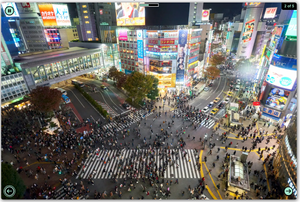
          <img src="carousel-images/tokyo.webp" loading="eager" alt="A shot of the Shibuya Scramble Crossing at Tokyo, at night. Thousands of people are crossing the busy pedestrian crossing, getting from one side of the illuminated street to the other. Many drivers wait for an opportunity to carry on their journey">
        </li>
        <li class="carousel__item" data-slide-num="3">
          <span class="carousel__counter" id="count3"><span class="visually-hidden">Slide </span>3 of 5</span>
          <img src="carousel-images/ny.webp" loading="eager" alt="A Shot of Central Park in New York, the photo is taken from height, showing a seemingly perfect rectangle of nature, situated in the middle of large buildings and skyscrapers all around. In the distance clouds are visible in the otherwise blue sky.">
        </li>
        <li class="carousel__item" data-slide-num="4">
          <span class="carousel__counter" id="count4"><span class="visually-hidden">Slide </span>4 of 5</span>
          <img src="carousel-images/paris.webp" loading="eager" alt="A shot of the Eiffel Tower in Paris taken from the embankment of the Seine River. Wispy clouds cover the sky, creating a pink hue where the sun tries to break through. The Eiffel Tower stands tall slightly to the right of the photo's center">
        </li>
        <li class="carousel__item" data-slide-num="5">
          <span class="carousel__counter" id="count5"><span class="visually-hidden">Slide </span>5 of 5</span>
          <img src="carousel-images/singapore.webp" loading="eager" alt="A shot of Marina Bay in Singapore, the Marina Bay Sands Resort stands Center, Three tall hotel buildings with a ginarmous rooftop spanning all three buildings. The ArtScience Museum is shown to the left, a structure that resembles a white lotus flower the petals seemingly part of the structure that contain the exhibits within. The waterfront glistens with reflections of the impressive structures under the the last moments of sunlight, as dusk approaches.">
        </li>
      </ul>
    </div>
  </section>
</main>


<div class="announcements visually-hidden" aria-live="polite"></div>
A quick run through of our base markup:
- We'll start with a
<section>element, we can add an accessible name to this to make a named region, which we'll just point at the<h2>element. Let's say these images are likely important for some reason and having them in a named region makes sense, even if that region can't be a true carousel for everybody. I have added atabindex="0", because if JS is unavailable and the user's browser does not support the new CSS carousel features, then they will have a scrollable region. I'll explain my rationale in more depth after this list, but we obviously need thattabindexfor when our gallery is scrollable, as the elements within aren't interactive - A
.carousel__inner-wrap, I have added this as we have a heading outside of the carousel, so this enables me to use any positional or layout properties without deducting the height of the heading, hiding the heading is something I end up doing, but that's entirely optional, of course - We have a
.carousel__controlscontainer, which contains a Play/Pause toggle button along with our Previous and Next buttons. Each of those buttons contains a visually hidden text node for the AccName. Obviously when JS isn't available we don't want to show this at all, so I have just popped ahiddenattribute on container. Now I know I could just create and destroy all of that, with JS, but I explained earlier, that it's just easier to write these guides without getting to deep in JS - We'll have a parent that contains the slides
.carousel__slides, we're using a<ul>, as it is a set of related things and by extension, we're adding an<li>wrapper for each image. I've removed thealtvalue for each image, only for this code snippet, definitely don't do this in production, it's just because it will make code blocks have an excessive horizontal scroll, the actualaltwill be in the CodePen - One slide contains an extra container, this is where we could put optional things Like text, a CTA or whatever and I have just put a single link inside one slide
- We'll add a live region, for later
A few other notes
- Where a control controls the slides, I use
aria-controls="carouselSlides", which points to the<ul>that contains the slides only - I have some data attributes, some are just a number for each slide and then we have one for the Pause/Play button, these are just convenient hooks for the JS
- We're not going to use everything I have put in, at all times
My rationale on using tabindex
Using tabindex on our region does come with the caveat that I can only remove that attribute when JS is available, so it will be present as a tab stop on the CSS carousel. Most browsers automatically make a scrollable region a tab stop, apart from Safari, so we can't rely on browsers to add this, I'm afraid. It's one additional tab stop, it's a small trade off I'm willing to make, as I'm trying to do my best for everybody taking a balanced approach. Placing the images in a scrollable region where I have no useful CSS or any JS could be appreciated, especially if there were lots of images in that region, as it could make accessing other non-graphic information significantly easier and it could reduce both effort and cognitive load.
 /* Resets, normalisation and vars */
:root {
  --colour-interactive: #a5e9ce;
  --colour-interactive-bg: #000000;
  }

  *,
  *::before,
  *::after {
    box-sizing: border-box;
  }

  *:not(dialog) {
    margin: 0;
  }

  body {
    display: flex;
    flex-direction: column;
    align-items: center;
    padding: .75rem;
    line-height: 1.5;
    font-family: Arial, Helvetica, sans-serif;
    -webkit-font-smoothing: antialiased;
  }

  main {
    width: 100%;
    max-width: 80rem;
    font-size: 1.25rem;
  }

  img, picture, video, canvas, svg {
    display: block;
    max-width: 100%;
  }

  input, button, textarea, select {
    font: inherit;
  }

  p, h1, h2, h3, h4, h5, h6 {
    overflow-wrap: break-word;
  }

  p {
    text-wrap: pretty;
  }

  h1, h2, h3, h4, h5, h6 {
    text-wrap: balance;
  }

  .visually-hidden {
    position: absolute;
    width: 1px;
    height: 1px;
    padding: 0;
    margin: -1px;
    overflow: hidden;
    clip: rect(0, 0, 0, 0);
    white-space: nowrap;
    border-width: 0;
  }
I've just taken what I need from Josh W Comeau's Modern CSS Reset, I'm not explaining any of this, but feel free to read Josh's post. I've made some modifications, added some CSS vars and created a visually-hidden class
This will be a combination of CSS that applies in all situations and also the situation where a scrollable region is present:
/* Base styles */

.main__title {
  font-size: 2.75rem;
  text-align: center;
}

.carousel {
  display: flex;
  justify-content: center;
}

.carousel__inner-wrap {
  width: min(100%, 150dvh);
  height: auto;
  aspect-ratio: 3/2;
}

/* Display as a row, add a gap, fill the viewport, remove list bullets and padding, add overflow and scroll snap */
.carousel__slides {
  display: flex;
  align-items: flex-start;
  flex-wrap: nowrap;
  gap: .75rem;
  border-radius: .5rem;
  padding-inline-start: 0;
  list-style: none;
  width: 100%;
  padding-inline-start: 0;
  list-style: none;
  box-shadow: 2px 2px 15px 2px rgba(0,0,0,0.6);
  overflow-x: auto;
  scroll-snap-type: x mandatory;
  scroll-behavior: smooth;
}

/* Center the image in the slide, if needed, set the scroll snap area and add a background */
.carousel__item {
  position: relative;
  flex: 0 0 auto;
  scroll-snap-align: start;
  aspect-ratio: 3/2;
}

/* Set the image dimensions */
.carousel__item img {
  width: 100%;
  height: 100%;
  object-fit: cover;
  object-position: center;
}

/* Place counter in top right */
.carousel__counter {
  position: absolute;
  top: 0;
  right: 0;
  border-radius: 0 .5rem 0 .5rem;;
  padding: .25rem .75rem;
  font-size: 1rem;
  font-weight: bold;
  color: var(--colour-interactive);
  background-color: var(--colour-interactive-bg);
}

/* Center the extra content ovelay to the bottom */
.carousel__slide-overlay {
  position: absolute;
  bottom: .5rem;
  left: 50%;
  display: flex;
  flex-direction: column;
  align-items: center;
  transform: translateX(-50%);

  @media (min-width: 36em) {
    bottom: 1rem;
  }
}

/* If there's a CTA I'm just using a similar style and colour scheme as other controls */
.carousel__cta {
  position: relative;
  border: 2px solid var(--colour-interactive-bg);
  border-radius: 2.5rem;
  padding: .25rem .75rem;
  font-size: 1rem;
  font-weight: bold;
  text-decoration: none;
  color: var(--colour-interactive-bg);
  background-color: var(--colour-interactive);

  &:focus-visible {
    border-color: var(--colour-interactive);
    background-color: var(--colour-interactive-bg);
    color: var(--colour-interactive);
    outline-color: transparent;
  }

  &:focus-visible::after {
    content: "";
    position: absolute;
    inset: -4px;
    border: 2px solid var(--colour-interactive-bg);
    border-radius: 3rem;
    box-shadow: 0 0 0 2px var(--colour-interactive);
  }
}

@media (min-width: 36em) {
  .carousel__inner-wrap {
    width: min(100%, 150dvh);
  }
}

@supports not selector(::scroll-marker-group) {
  .no-js {
    .carousel__item {
      max-width: 100%;
    }

    .carousel__counter {
      border-radius: 0 0 0 .5rem;
    }
  }
}
I've added brief comments to each block, as I can't go through all of this, as the CSS file will eventually be quite lengthy. I use a 3:2 aspect ratio, for no other reason than that's what I went with. Well, actually it was because 16:9 is shorter than it is wider and I wanted to increase the height on mobile, as mobile carousels are a little of a challenge, at the best of times.
We're using scroll snapping so each image snaps into view and we ensure that no image can exceed the width of the viewport. Scroll snapping does work by dragging the scrollbar, swiping on a touch display or using arrow keys on the keyboard, so we always get that snapping behaviour, where an image is always aligned to the viewport.
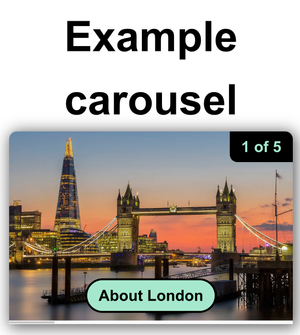
Just as it's nice to have receipts, the following image shows what I have done so far and I have set the browser width to 1280px, height to 1024px and then zoomed 400%, as required by Reflow.
I say attempting, not because it is beyond me, just I genuinely went into this having only read Sara's article, I've never attempted this and we'll discuss whether it's accessible enough to use or not, later.
Whilst you could absolutely learn everything you need to know, fram Sara's article, I was just picking individual bits from the features, I didn't want the pips, just the buttons, which Sara didn't raise a great deal of concern with.
The relevant CSS carousel styles
/* CSS carousel */

@supports selector(::scroll-marker-group) {
  .no-js {
    .carousel__inner-wrap {
      position: relative;
    }

    .carousel__slides {
      overflow-x: hidden;

      &::scroll-button(*) {
        position: absolute;
        bottom: 1.5rem;
        display: flex;
        justify-content: center;
        align-items: center;
        border: 1px solid var(--colour-interactive);
        border-radius: 50%;
        padding: .5rem;
        height: 2.5rem;
        width: 2.5rem;
        font-size: 1.75rem;
        background-color: var(--colour-interactive-bg);
        color: var(--colour-interactive);
        z-index: 10;
        cursor: pointer;
      }

      &::scroll-button(*):focus-visible {
        background-color: var(--colour-interactive-bg);
        color: var(--colour-interactive);
        outline-offset: 4px;
      }

       &::scroll-button(*):disabled {
        background-color: grey;
        color: #4e4e4e;
        border-color: #4e4e4e;;
      }

      &::scroll-button(left) {
        content: "⬅" / "Previous slide";
        left: 1rem;
      }

      &::scroll-button(right) {
        content: "⮕" / "Next slide";
        right: 1rem;
      }

      .carousel__item {
        width: 100%;
        height: 100%;
      }

      .carousel__item img {
        min-width: 100%;
        height: 100%;
      }
    }
  }
}
I'll give you a brief rundown of the above CSS above:
- We do all of this in a supports at-rule, the only value I could find that worked for that was
::scroll-marker-group, so in essence, if a browser supports thatpseudo element, and there is no JS, then use this - For every declaration, we're using our
.no-jsclass, as we don't want any of this to apply if someone on Edge or whatever has JS enabled - We set
position: relative;on the wrapper that is constrained to the viewport, I knew this particular element would come in handy for something, I could almost fool someone into thinking I can see the future. We use this element as a static plot that we can place absolutely positioned elements within and be sure we'll know they are placed exactly where we want them to be - We hide
overflow, as we're going for the traditional one image in view at any given time carousel - Next we have the styles that are shared between the laft and right buttons, where I have passed in the global selector, the asterisk, I could have specified
leftorrightand I could of course have separated those declarations with a comma, to share those styles. Because my buttons are floating in the bottom corners and I cannot possibly know what images this will contain, I know that I have to ensure the buttons are perceivable. I just use a black arrow against a pale sea green background which gives us a contrast of 13.72:1. It's just the arrow that needs to be perceivable, it doesn't technically matter if the black background clashes with an image below, however, affordance is a thing and users tend to benefit from it a lot, so I also add a border around the buttons, which is also sea green, this prevents the image from bleeding into the background of the buttons and increases delineation, a little - Next I wanted to ensure focus styles were decent, I inverted the background and arrow colours, this cannot fail, because those colours already passed and had a strong contrast. I then just added an outline-offset: 4px; which pushes the browser's default focus ring out 4px from the actual button. In Chrome, which is what i'm using, that is a dual colour ring, so under most circumstances, either the blue ring or the whte ring will be perceivable, later, I make that focus ring much more prominent
- The next two declarations I access each button by name, as this is unique styles and AccNames that is unique to each button. I simply set an arrow as the content that points in the correct direction (Thanks Adam Argylle), I then add alt text, in CSS, which feels a little alien, but also useful. I then just add enough space for breathing room, I'm on MacOS so my scrollbar occupies different space than Windows scrollbars, but we're somewhere in the right ballpark and no, I have not tested, because we're just exploring the features
CSS Carousel: The good bits
Technically we have just added some functional buttons with some new CSS features, what did we want as a bare minimum:
- We absolutely needed the role to be that of a button, Sara showed this was the case and it is still the case today, that's great
- All controls must have an AccName, again, Sara demoed this perfectly, these were my two minimum requirements and what gave me a glimmer of hope. The fallback alt text in the
content:property works as it should, at least in this case, obviously I can only test the usage of that on these buttons on a Chromium browser, but that's OK, as those buttons don't appear elsewhere, yet - The button that controls the slides becomes
disabledwhen we reach the last slide in that direction, it's not a infinite carousel, so the button becomes pointless at the end or beginning, that's quite useful - If I sequentially navigate with my virtual cursor within the carousel, I can change the slides and when a new slide is displayed, it's read out, as that is where my virtual focus is, that's not quite carousel behaviour, but some screen reader users may appreciate that
CSS Carousels: Could be better
- I don't think any of us reasonably expected anything to be announced by using the buttons, I don't think that screen reader users who choose to disable JS expect that, either, as we would need JS to do that. It's perhaps safe to say, that a screen reader user who disables JS knows they are disabling the majority of dynamic changes? As the buttons say "Next slide" this may provide some form of clue, as to what they are for? We didn't explicitly call it a carousel, we could not, because the scrollable region isn't a carousel and that means a user could potentially wonder where the carousel controls are? In my limited testing if I use Tab and Enter on the buttons, I hear nothing, which is what we expected, I guess. But, that ultimately means the buttons aren't very useful for screen reader users, as it would be a case of advance a slide, go off with the virtual cursor to have slide read, go back to button, repeat ad infinitum. Whether this is a deal breaker is something only a screen reader user could tell us
- Focus management, not great. When I was using the Next slide button and I eventually reached the end of the images, the button became
disabled, which was cool. But, here's where it gets ugly, a disabled button cannot maintain keyboard focus, so it has to be sent somewhere. In this example, it is sent to the<body>element. Now, it's worth pointing out we have a parent element that does have atabindexattribute, we also have a Previous button that cannot bedisabledat the same time, so focus being hijacked and sent to the<body>isn't great. On a real site, we could have a tonne of tabstops before that carousel, which would obviously be a huge PITA for any user that does not use a pointing device. The browser did not scroll to the top when I added 1000 words of Lorem Ipsum, so focus was untracked. that may be good or bad, depending on the individual. It's early days, perhaps they could handle focus a bit more intuitively, like the native<dialog>element, that has its own unique focus steps? - Technically, there's no relationship between the buttons and the slides. Ordinarily, we would use
aria-controls. which obviously has very little support, but it is still an explicit relationship, we can't access pseudo elements with JS, even if we had JS available, but, I did make a named region, which is something that creates a sort of weak clue these things may be related
CSS carousel final thoughts
We didn't go to the lengths that Sara did, because we were only interested in the buttons, we didn't want the pips, which actually change the semantics of everything into tabs, etc. We just wanted a way to advance slides with buttons and enough accessibility info to be present that it makes sense. The buttons are seemingly redundant for a screen reader user, at least using Chrome and VoiceOver, which I know isn't ideal, but I can't test this on Safari. I found the focus being forced on to the body quite jarring, this carousel could be anywhere on a page, a regular keyboard user/voice user or anyone that uses most other keyboard navigation API AT, with the exception of screen reader users could have a hard time getting back to where they were. A screen reader user could at least get back using their Rotor/Elements panel, but even then, why should they have to do that?
I can't speak for screen reader users, I can make observations, though. A regular carousel doesn't advance slides with arrows, if done correctly, as slides that aren't visible are accessibly hidden. That means using arrow keys would move through all of what is visually present, the slides and controls, etc, then exit the carousel. This time it's still operating like our scrollable region, in that each slide will be read, sequentially, without ever having to use the buttons. This could be a good thing or a bad thing, but the question is, how does a screen reader user know that this is a CSS carousel, as opposed to a regular one?
In its current implementation, the focus management alone is enough to put me off using it, as that would be annoying for users. Even if at this stage we had JS at our disposal, we couldn't fix it, as we can't access pseudo elements with JS, so capturing the click event and sending focus to somewhere logical isn't possible. But, at that stage, we may as well just roll our own, I guess.
We're not going to use it, I don't think it's particularly great. It has some good parts, but CSS is very limited, accessibility-wise and I honestly don't think it's the correct tool for the job. It's simple enough to implement, but it feels lacking in places and that's perhaps a limitation of CSS? I'm not fully sure why we have it, how we got here and why it exists, but it's here, albeit experimental, for now and I definitely would not use it. That being said, I'm leaving it in, as it was part of my process. I'd just delete the last code block and move on, though.
We're at that stage now where we can use JS to manipulate the DOM, we don't need to fudge a carousel with CSS and most importantly, we have full control over all accessibility information and the widget's behaviour.
We don't need to change any HTML, we will need to add some CSS and it's likely that some of that CSS will be the same as we have already written in the CSS-only carousel, but don't worry, as we'd just delete the CSS carousel if we were going live with this.
CSS for JS enabled carousel
.has-js {
  .carousel__inner-wrap {
    position: relative;
    display: flex;
    flex-direction: column;
  }

  .carousel__slides {
    position: relative;
    width: 100%;
    overflow-x: hidden;
    aspect-ratio: 3/2;
    height: auto;
    scroll-snap-type: none !important;

    .carousel__item {
      position: absolute;
      top: 0;
      left: 0;
      width: 100%;
      height: 100%;
      visibility: hidden;
      will-change: transform;
      z-index: 1;
      scroll-snap-align: none !important;
    }

    .carousel__item.active {
      visibility: visible;
      transform: translateX(0);
      z-index: 2;
    }

    .carousel__item.prev-stage {
      transform: translateX(-100%);
    }

    .carousel__item.next-stage {
      transform: translateX(100%);
    }

    @media not (prefers-reduced-motion: reduce) {
      .carousel__item.is-sliding {
        transition: transform 800ms ease-in-out, visibility 800ms !important;
      }
    }

    @media (prefers-reduced-motion: reduce) {
      .carousel__item {
        transition: all 0ms !important;
        transform: translateX(0);

        &.active {
          visibility: visible;
        }
      }
    }

    .carousel__item img {
      min-width: 100%;
      height: 100%;
    }

    &::before,
    &::after {
      content: "";
      position: absolute;
      top: .375rem;
      width: 5rem;
      left: 50%;
      height: 10px;
      z-index: 10;
      transition: none !important;
      translate: -50% 0;
    }

    &::before {
      border: 3px solid var(--colour-interactive-bg);
      background-color: var(--colour-interactive-bg);
      box-shadow: 0 0 0 2px #fff;
    }

    &::after {
      border: 2px solid var(--colour-interactive-bg);
      border-right: none;
      transform: scaleX(0);
      transform-origin: left;
      background-color: var(--colour-interactive);
    }

    &.animating::after {
      animation: fillProgress 5000ms linear forwards;
    }

    &.paused::after {
      animation-play-state: paused;
    }
  }

  &[data-carousel-motion="none"] {
    .carousel__slides {
      &::after,
      &::before {
        display: none;
      }
    }
  }

  .carousel__autoplay-toggle,
  .carousel__prev-btn,
  .carousel__next-btn  {
    position: absolute;
    display: flex;
    justify-content: center;
    align-items: center;
    line-height: 1;
    border: 3px solid var(--colour-interactive-bg);
    border-radius: 50%;
    padding: .5rem;
    height: 2.5rem;
    width: 2.5rem;
    font-size: 1.4rem;
    background-color: var(--colour-interactive);
    color: var(--colour-interactive-bg);
    cursor: pointer;
    z-index: 10;

    &:focus-visible {
      border-color: var(--colour-interactive);
      background-color: var(--colour-interactive-bg);
      color: var(--colour-interactive);
      outline-color: transparent;
    }

    &:focus-visible::after {
      content: "";
      position: absolute;
      inset: -6px;
      border: 3px solid var(--colour-interactive-bg);
      border-radius: 50%;
      box-shadow: 0 0 0 2px var(--colour-interactive);
    }
  }

  .carousel__autoplay-toggle {
    top: .5rem;
    left: .5rem;
    font-size: 1rem;

    @media (min-width: 36em) {
      top: 1rem;
      left: 1rem;
    }

    &[data-play-state="play"]::before {
      font-family: "Font Awesome 5 Free";
      content: "\F04c" / "";
      font-weight: 900;
    }

    &[data-play-state="pause"]::before {
      font-family: "Font Awesome 5 Free";
      content: "\F04b" / "";
      font-weight: 900;
    }
  }

    .carousel__prev-btn {
      bottom: .5rem;
      left: .5rem;

      @media (min-width: 36em) {
        bottom: 1rem;
        left: 1rem;
      }

    &::before {
      font-family: "Font Awesome 5 Free";
      content: "\F060" / "";
      font-weight: 900;
    }
  }

  .carousel__next-btn {
    bottom: .5rem;
    right: .5rem;

    @media (min-width: 36em) {
      bottom: 1rem;
      right: 1rem;
    }

    &::before {
      font-family: "Font Awesome 5 Free";
      content: "\F061" / "";
      font-weight: 900;
    }
  }
}

@keyframes fillProgress {
  from {
    transform: scaleX(0);
  }

  to {
    transform: scaleX(1);
  }
}

@media (forced-colors: active) {
  .carousel__slides {
    &::before {
      background-color: CanvasText !important;
    }
  }


  .carousel__autoplay-toggle,
  .carousel__next-btn,
  .carousel__prev-btn,
  .carousel__cta {
    background-color: ButtonFace !important;
    color: ButtonText !important;
    border: 4px solid ButtonText !important;

    &:focus-visible {
      background-color: ButtonText !important;
      color: ButtonFace !important;
      border-color: ButtonFace !important;
      outline: 4px solid Highlight;
      outline-offset: 2px;
      transform: scale(1.05);
    }
  }

  .carousel__cta {
    &:focus-visible {
      forced-color-adjust: none;
      background-color: ButtonText !important;
      outline-width: 3px;
    }
  }

  .carousel__prev-btn::before,
  .carousel__next-btn::before,
  .carousel__autoplay-toggle::before,
  .carousel__autoplay-toggle::after {
    forced-color-adjust: none !important;
    background: transparent !important;
    background-color: transparent !important;
    color: currentColor !important;
    transform: scale(1.05);
  }

  .carousel__prev-btn:focus-visible::before,
  .carousel__next-btn:focus-visible::before,
  .carousel__autoplay-toggle:focus-visible::before,
  .carousel__autoplay-toggle:focus-visible::after {
    color: ButtonFace !important;
  }

  .carousel__prev-btn:focus-visible::after,
  .carousel__next-btn:focus-visible::after {
    border-color: ButtonFace !important;
    transform: scale(1.05);
  }
}
I'll just summarise some of this:
- Everything we do now will be nested inside the
.has-jsclass, as we only won't this to apply when JS is available - I have addressed High Contrast Mode, ensuring our controls are just as prominent
- I added a sliding effect, so new slides slide into view, I remove that animation effect for users that have the prefers reduced motion setting. One thing that nearly broke me here was Firefox, my slides worked fine on Chrome and Safari, but I had to go down a deep rabbit hole and discover that Firefox handles animation slightly differently, so I had to modify my JS and CSS in ways that were way more difficult and there is still smoke coming out of my ears from figuring it out. Another thing that did get me was using
scroll-snap-alignandscroll-snap-type, as firefox treats those differently. This resulted in a rather janky animation that meant a slide never completed its full transition, so there was a white sliver on one side (dependant on direction). I only figured that out by turning off every single CSS property, one by one, not fun. I ended up killing those properties when JS is available, as we don't need them there - We have media queries, to ensure evrything is exactly where we need it to be, at all times
- We have an animated progress indicator, it's pretty useful to know how long you have left to look at your current slide
- I had to change the icon buttons for Font Awesome icons, here, as Firefox rendered the Pause/Play and Next buttons perfectly, but for reasons I could not find the answer to, the icon inside the Previous button was tiny and I admitted defeat
- Our slides use a 800ms transition, this is the time they take from animation start, to animation end. Each slide is actually presented for 5 secons, however, 800ms of that is the transition
- There's a bit more work on focus styles, as it's important they're easy to perceive
JS for our carousel
  const carousel = document.querySelector('.carousel');
  const carouselInner = carousel.querySelector('.carousel__inner-wrap');
  const carouselSlides = carousel.querySelector('.carousel__slides');
  const carouselItems = carousel.querySelectorAll('.carousel__item');
  const carouselNextBtn = carousel.querySelector('.carousel__next-btn');
  const carouselPrevBtn = carousel.querySelector('.carousel__prev-btn');
  const carouselAutoplayToggle = carousel.querySelector('.carousel__autoplay-toggle');
  const announcements = document.querySelector('.announcements');
  let currSlide = 0;
Firstly we're just getting references to many of the elements we'll use throughout.
  const disableAutoplay = window.matchMedia('(prefers-reduced-motion: reduce)').matches;
  carousel.querySelector('.carousel__controls').hidden = false;
  carousel.removeAttribute('tabindex');
  carousel.querySelector('.carousel__slides').setAttribute('role', 'presentation');
carousel.setAttribute('aria-roledescription', 'carousel');- Then we want to check if our user has set reduced motion in their operating system, as we will of course, honour that
- We remove
hiddenfrom the controls container element that previously had it - We remove
tabindexfrom the region, as we definitely don't need that, now - We set the
<ul>element asrole="presentation", as we no longer want the list semantics. each slide is of course numbered manually - We add
aria-roledescription="carousel", which acts as complimentary role, of sorts
// A small state object, for determing what to do under certain conditions, such as hover, focus within and when the carousel is manually paused
let carouselState = {
  isFocusWithin: false,
  isMouseWithin: false,
  isManuallyPaused: false
};

// We set isManuallyPause to true, on page load if the user prefers reduced motion
if (disableAutoplay) carouselState.isManuallyPaused = true;

// Initialise our slides, set the first one as active
carouselItems.forEach((slide, idx) => {
  slide.setAttribute('aria-roledescription', 'slide');
  slide.setAttribute('role', 'group');
  slide.setAttribute('aria-labelledby', `count${idx + 1}`);
  idx === 0 ? slide.classList.add('active') : slide.classList.add('next-stage');
});

// We want our data attributes and buttons to match the correct state for play or pause at all times
const setAutoplayState = (isPlaying) => {
  document.documentElement.dataset.carouselMotion = isPlaying ? 'play' : 'none';
  carouselAutoplayToggle.dataset.playState = isPlaying ? 'play' : 'pause';
  carouselAutoplayToggle.querySelector('.visually-hidden').textContent = isPlaying ? 'Pause' : 'Play';
};
We add an object with some global state values we will need to compare. This is all for determing when the slides should pause or resume. If a slide is only playing for 5 seconds and it contains a link, then by the time you get to that link, the slide has been replaced, that's going to be quite annoying, isn't it? We manage that later, but this is the object we'll refer to, multiple times
If our user prefers reduced motion, we simply set the value to isManuallyPaused to true, so we can grab that, later
We loop through each slide and and add the following:
- An
aria-roledescription="slide"property to give that custom/complimentary role - We're adding an actual
role="group", only one of our slides contains supplementary items, but they all contain a slide number and an image, so they're group enough to be groups, I guess - We add an AccName to each slide by just building an iterated IDRef
- When the page first loads, we set all but the first slide to have
.next-stage, and the current slide to.active - We have a function we use throughout, that we pass true or false to, so we can ensure that thePlay/Pause button has an accurate icon and AccName. We don't want to show a pause button on an already paused carousel, do we?
const navigateToSlide = (idx, direction = 'left') => {
  const currentSlide = carouselItems[currSlide];
  let nextIndex = (idx + carouselItems.length) % carouselItems.length;
  if (nextIndex === currSlide) return;
  const nextSlide = carouselItems[nextIndex];

  currentSlide.classList.remove('is-sliding');
  nextSlide.classList.remove('is-sliding');

  if (direction === 'left') {
    nextSlide.classList.remove('next-stage', 'active');
    nextSlide.classList.add('prev-stage');
  } else {
    nextSlide.classList.remove('prev-stage', 'active');
    nextSlide.classList.add('next-stage');
  }

  window.getComputedStyle(nextSlide).transform;
  window.getComputedStyle(currentSlide).transform;

  setTimeout(() => {
    currentSlide.classList.add('is-sliding');
    nextSlide.classList.add('is-sliding');

    if (direction === 'left') {
      currentSlide.classList.remove('active', 'prev-stage');
      currentSlide.classList.add('next-stage');
    } else {
      currentSlide.classList.remove('active', 'next-stage');
      currentSlide.classList.add('prev-stage');
    }

    nextSlide.classList.remove('prev-stage', 'next-stage');
    nextSlide.classList.add('active');
  }, 0);

  currSlide = nextIndex;

  setTimeout(() => {
    currentSlide.classList.remove('is-sliding');
    nextSlide.classList.remove('is-sliding');
  }, 850);

  carouselSlides.classList.remove('animating', 'paused');
  void carouselSlides.offsetWidth;
  checkAutoplayState();

  if (carouselState.isManuallyPaused === true) {
    constructAnnouncement(nextSlide);
  }
};
Confession time: Firefox nearly broke me, here. I had this working well on other browsers, but due to some browser engine spec and split-second timings, it was broken for Firefox and I got stuck. For my sins, I had to ask an AI agent for some help and ended up with the setTimeouts and a couple of extra classes to mitigate that. It took a while, it took several prompts and eventually, I got there. In essence:
- We always need to know of the next slide and current slide, we have the previous slide if we need to change direction (user presses Previous button)
- Our nextSlide is determined with wraparound logic, using the modulo operator
% - We need to add
.is-slidingto the two slides that move within the animation, as we only want the animation frames from CSS to apply there, otherwise we got janky carousel animations - We remove those slightly after the animation is complete
- We remove other classes such as
.animatingand.paused - If the carousel is manually paused, we need to construct an announcement, more on that later and thanks, Safari, for being the outlier
// Toggle classes and states when autoplay starts
const startAutoplay = () => {
  setAutoplayState(true);
  announcements.textContent = '';

   if (carouselSlides.classList.contains('paused')) {
    carouselSlides.classList.remove('paused');
    carouselSlides.classList.add('animating');
  } else {
    carouselSlides.classList.add('animating');
  }
}

// Toggle classes and states when autoplay stops
const stopAutoplay = () => {
  carouselState.isManuallyPaused = true;
  setAutoplayState(false);
  carouselSlides.classList.remove('animating', 'paused');
}

// Pause autoplay
const pauseAutoplay = () => {
  if (document.documentElement.dataset.carouselMotion === 'play') {
    carouselSlides.classList.add('paused');
  }
}

// Animate the progress bar, for autoplay
const progressAnimation = () => {
  carouselSlides.classList.remove('animating', 'paused');
  void carouselSlides.offsetWidth;
  carouselSlides.classList.add('animating');
}

// Check whether the user has hovered or focused within the carousel
const checkAutoplayState = () => {
  const willPause = carouselState.isFocusWithin || carouselState.isMouseWithin;

  if (carouselState.isManuallyPaused) return
  willPause ? pauseAutoplay() : startAutoplay();
}
A few functions that handle various aspects of autoplay:
- In
setAutoPlay()we just call that earliersetAutoPlayState()function and pass intrue, we then toggle the classes that show the progress bar - When we
stopAutoplay(), we need to set ourisManuallyPausedentry totrue, thensetAutoplayState()tofalseand remove some classes from the slides pauseAutoplay()simply adds a.pausedclass, if it isn't already present- I had to have the timer and its associated animation on the GPU for the progress bar, as they ended up slightly out of sync, so we just reset the
offsetWidthand toggle classes on theprogressAnimation()function - A slide that is only fully in view for 5 seconds minus the .8 seconds transition may be fine, but, it may not, also, one of my slides contains a link, what would happen if a user started to move their mouse or keyboard focus towards that link after say 4.5 seconds? The slide and link would be gone, that would be horrible, right? If a user hovers into the carousel, which we listen for, later, we want to call the
pauseAutoplay()function, to give them time to do what they want to do. We also later listen for focus within on any interactive element inside, apart from the Play/Pause button and again, we pause. The reason I did not include the Play/pause button in that logic is when you press Play, you expect that to be instant and that is true when you use mouse, tap or keyboard, so I allow that to pass through. When there is no focus or hover, we're good tostartAutoplay()
const constructAnnouncement = (curr) => {
  announcements.textContent = '';
  const knownString = `${curr.querySelector('.carousel__counter').textContent}, ${curr.querySelector('img').alt}. `;
  const slideOverlay = curr.querySelector('.carousel__slide-overlay');
  let overlayText = '';

  if (slideOverlay) {
    overlayText = Array.from(slideOverlay.childNodes)
      .map(node => {
        if (node.nodeType === Node.ELEMENT_NODE) {
          if (node.tagName.toLowerCase() === 'a') {
            return `${node.textContent}, link,`;
          } else if (node.tagName.toLowerCase() === 'button') {
            return `${node.textContent}, button,`;
          }
        }
        return node.textContent;
    }).join('').trim().replace(/\s+/g, ' ');
  }

  announcements.textContent = `${knownString}${overlayText}`;
}
This one had me for ages, I threw everything at this, trying to get consistent browser experiences and I could not get it to work in the correct way using the simpler approach. Eventually I ended up figuring out what the issue was and it's because Safari handles dynamic changes to live regions differently than other browsers.
In essence, live regions generally need to be empty and then injected with text, before they announce something, right? There is another way, if the live region itself contains accessibly hidden elements and we toggle the hiding method of a child element, then that will announce itself, too. Perfect for a carousel, huh? Well, not always. So, I had my live region on the <ul> element, as every slide has visibility: hidden, unless it is the active slide. So we are changing the contents of a live region by exposing new stuff. I do know we have an intermediate state where two slides are technically exposed, but believe me when I say I threw everything at this, I tried aria-hidden and inert, which I held off on for half a second, I even bypassed the animation and used hidden and display: none;, I tried them all during my troubleshooting and it simply would not work in Safari.
There is a W3C APG accessible carousel example, go ahead and test this with Safari and VoiceOver, if you can. Silence on every press of the Previous and Next buttons, right? Not good, it works on Chrome, sort of, but I found I was getting double announcements, I will concede that I do have a pending browser update, I don't update my browser or OS mid task. I know that Chrome and VoiceOver isn't the recommended pairing, but a small number of people actually do use that pairing and I still like to check, because there's no harm in me modifying my own code to work across lesser used pairings.
So, what was the issue, I hear you ask? We don't want to have the carousel announce anything on autoplay, because that's quite rude, it would possibly interupt our user, should they pause long enough for the live region to fire (I did use "polite"), that would be quite awful. We could have looked into only autoplaying when the carousel is on screen and paused when above/below the fold, but that's not a great approach, as the user could have the carousel on screen and it would not be the only thing on screen on certain devices or viewports. If they pause, it starts yapping, not good.
Our carousel only announces anything when a user manually controls it, using either of the Previous or Next buttons. The moment they are interacted with, we stop autoplay and use logic to move the slides in the correct direction. Before I got this working, I simply toggled the value of aria-live from "off" to "polite" when the user grabbed the wheel, so to speak. That would have been perfect had it worked universally, but Apple be Appling and they do things a little different. I genuinely don't know who's doing it correct, I'm not hating on Apple, I'm using my own Mac, here, I'm just saying they're often different.
What I expected to happen on both my effort and the W3C's is toggle the live region to "polite", then, announcements could be made via updates to the accessibility tree as we dynamically hide and show content. If when the page loads, that live region is set to "off", it seemingly stays off, forever, in Safari and Safari alone. The rabbit hole I went down resulted in me partially understanding what the issue could be. At first it appeared that as both the live region and new slide toggled virtually simultaneously, that Safari ignored the step, so I introduced delays, by adding aria-hidden to a slide and then removing it 500ms into the transition phase. I even tried a longer delay, to no avail, but I wouldn't have gone longer, as feedback needs to be pretty quick on a button, right? I just could not get it to reliably work and I'm not going to pop a guide on here that I know doesn't work on a popular browser with the correct screen reader for that pairing
I had to create my own live region, which was already primed with the "polite" value and then replicate what would be announced had the the previous attempt worked. At a minimum, we have a "Slide [n] of 5", [image alt text]", but sometimes, we have more, well, just on one slide here, but I could have added anything to the .slide__overlay container, which is just there to add additional items and controls.
Technically, I didn't need to do anything special, here, I could just have grabbed the counter, the image alt and the textContent of the .slide__overlay container and concatenated that string, before injecting our live region. That is in essence how these mostly work, right? Maybe I overengineered a tiny bit, here, but ordinarily, I would not put something large in a live region, it may just provide instant feedback from a Search such as "5 results" or it may announce an action has resulted in success or error, etc, we wouldn't put that live region on an entire section of content, because it will just read as much as the buffer is set to, if there is a buffer, right? Yuk.
Live regions only announce text, so we would get "Slide 1 of 5, [img alt], About London". About London is a link, but that's not communicated, because sematics are ignored, by design. Live regions are supposed to be small snippets of time-sensitive info, but a carousel could have text heavy slides, huge alt text, controls for changing the colour of a product, CTA links or other controls. We're encouraging screen reader users to remain on the buttons, by announcing the entire slide content, we're trying to provide a comparable experience that means they don't need to go off looking for content within. My link has a pretty decent label/AccName "About London" which may be enough of a clue, but then it may not. What if it were just "London", it would in all likelihood just be interpreted as the slide name and not immediately understood to be a link, I can't say for sure, but would the presence of a link be understood from "About London" or even just "London" at the end of the announcement? Maybe by some, maybe not others, I guess.
So, what I did was search inside the string for the presence of links and buttons, if they are present, I add ", link," or ', button," directly after that substring, then glue everything back together, do some basic stripping of extra spaces and pass it into the live region. We then end up with "Slide 1 of 5, [img alt], About London, link". Which may be useful, but we could only know that from user testing. I may well be over-engineering, but I'm not saying go use this, I'm saying ask your screen reader users if they find it helpful or not, If they do, keep it, if not, toss it to the side and carry on with your day.
We could have added "link" to the end of the link's label and hid it, visually, but then focussing on that link would be "Link, About London, link", which is unneccesary repetition and makes the experience worse for screen reader users and and at least on Apple devices, increases the number of words to be spoken by voice input users to activate the control. My approach seems way better than that, but, maybe not doing what I did is even better? There is a contact email above the footer, if you have any thoughts, please do get in touch.
// Listen for clicks on the Play/pause button, flip the isManuallyPause boolean, and either paly or stop
carouselAutoplayToggle.addEventListener('click', (btn) => {
  carouselState.isManuallyPaused = !carouselState.isManuallyPaused;
  btn.target.dataset.playState === 'play' ? stopAutoplay() : startAutoplay();
});

// Move to next slide
carouselNextBtn.addEventListener('click', () => {
  stopAutoplay();
  navigateToSlide(currSlide + 1);
});

// Move to previous slide
carouselPrevBtn.addEventListener('click', () => {
  stopAutoplay();
  navigateToSlide(currSlide - 1, 'right');
});

// Using the GPU, when the progress bar hits the end, advance to next slide
carouselSlides.addEventListener('animationend', (evt) => {
  if (evt.animationName === 'fillProgress') {
    navigateToSlide(currSlide + 1);
    progressAnimation();
  }
})

// Detect mouse presence within
carouselInner.addEventListener('mouseenter', (evt) => {
  carouselState.isMouseWithin = true;
  checkAutoplayState()
})

// detect the mouse leaving
carouselInner.addEventListener('mouseleave', (evt) => {
  carouselState.isMouseWithin = false;
  checkAutoplayState()
})

// Detect focus within on all but the Play/Pause buttons
carouselInner.addEventListener('focusin', (evt) => {
  if (evt.target === carouselAutoplayToggle) {
    carouselState.isFocusWithin = false;
  } else {
    carouselState.isFocusWithin = true;
  }
  checkAutoplayState()
})

// Detect focus leaving
carouselInner.addEventListener('focusout', (evt) => {
  const newActiveEl = evt.relatedTarget;

  if (!carouselInner.contains(newActiveEl) || newActiveEl === carouselAutoplayToggle) {
    carouselState.isFocusWithin = false;
  }
  checkAutoplayState()
})

// Immediately disable autoplay if user makes a system change to reduced motion
window.matchMedia('(prefers-reduced-motion: reduce)').addEventListener('change', (evt) => {
  if (setAutoplayState) {
    stopAutoplay();
  }
})

// If reduced motion was detected on load, don't autoplay, else do
disableAutoplay ? setAutoplayState(false) : startAutoplay();
I've added comments to each event listener, we'll just leave it there, as I'm sick of myself, at this stage and I can imagine you're sick of reading what has turned into War and Peace.
- We have a carousel that autoplays only if the user has not requested reduced motion. If a user does have that preference, they do not get slide transitions, they will still see the small progress bar, as that's small enough to not be an issue. They can of course just pause it and use the Prev/Next buttons and it'll go away
- We handle hover and focus, to give users a way to pause or get to content, obviously hover doesn't work on touch screen, but, again, there's a pause button
- We announce slides in full, only when a user grabs control, never during autoplay
- Our carousel fits on all viewports. It does run the risk of getting a bit naff on mobile, if the links are covering the images enough to make them redundant, there's room for improvement, there
- We have strong focus indicators, making it obvious which element has focus, irrespective of the background
- We have a logical focus order, Pause is first in case our user doesn't like our autoplay
- We have added some styles for High Contrast, so everything is fully perceivable to users who use that setting
- We animated the slides and we reverse the direction for Previous buttons, as we wanted a nice carousel that has accessibility at its core
- Our controls are all of a good size
- We're progressively enhanced
- We discovered the CSS carousel is not quite good enough for our needs
- I would have liked to have given the carousel more height, in portrait, on a mobile. This would mean that the image would have been a fair bit taller than it is wide. This would have helped to reduce the effect of controls obscuring important parts of the image. The issue I faced when I attempted that is it's easy to fall foul of inaccurate alt text. The lotus flower museum in Singapore was basically cropped out of existence, my alt text states it's there, cropping something that forms an interesting part of an image, that I have explained in alt text, is a loss of content. I could have carefully curated images to mitigate this, but, in reality, that isn't a great approach and we may not always have a say. Perhaps on mobile I should have moved the controls down, into a control bar of sorts, so they did not obscure the images?
- Maybe adding the word "link" after the link was not what users would want or maybe it is? i did so knowing it could be useful, but unable to confirm, so did so as a proof of concept, something to discuss the merits of and I'm not precious, either way
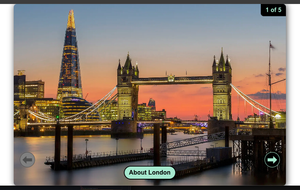
CSS only carousel, on landscape screen
No JS and no CSS carosel, using overflow
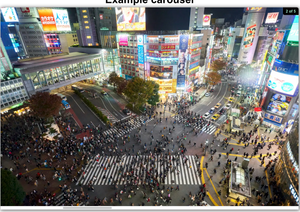
Carousel in High Contrast Mode
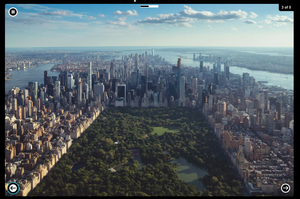
Carousel with focused control
I think we covered everything with this. I'm sure I covered all of the bases for folks with a variety of accessibility requirements. That being said, don't ever just copy my stuff and call it good, it's only ever a thought process and prototype, it would need more testing and most importantly testing with paid disabled users.
Over the coming weeks, I'll pick up Part 2 of this. We'll probably not include all of the code, I'll just neuter the bits we don't need for the pips/dots approach and we'll just modify the original code, which shouldn't be too much effort, I think we have most of it and may require just a few extra functions and some additional CSS. I say that now, but everything seems straightforward when it's just an idea.
All images were taken from Unsplashed and are free to use under their free license:
David Monaghan, Tower Bridge, London
Timo Volz, Shibuya Intersection in Tokyo
Jermain Ee, New York, Central Park
Chris Karidis, Eiffel Tower, Paris France
VactionTravelInsider dot com, Marina Bay Sands Resort, Singapore